
How To Use The Guest Camera At Your Event
Set up photo challenges and manage the guest camera album from your event page.
Quick Answer
On your Event page, pick photo challenges and choose Save challenges. Then share the Guest Camera with Open print-ready QR sign or Copy link. Guests scan the QR and snap photos and short videos, and you choose when to reveal the album.
- Guest Camera in your portal
Your event page has everything you need to engage your guests with photos and videos. You can set up challenges, share a QR code, and review the album before revealing it.
Step 1
Create Photo Challenges
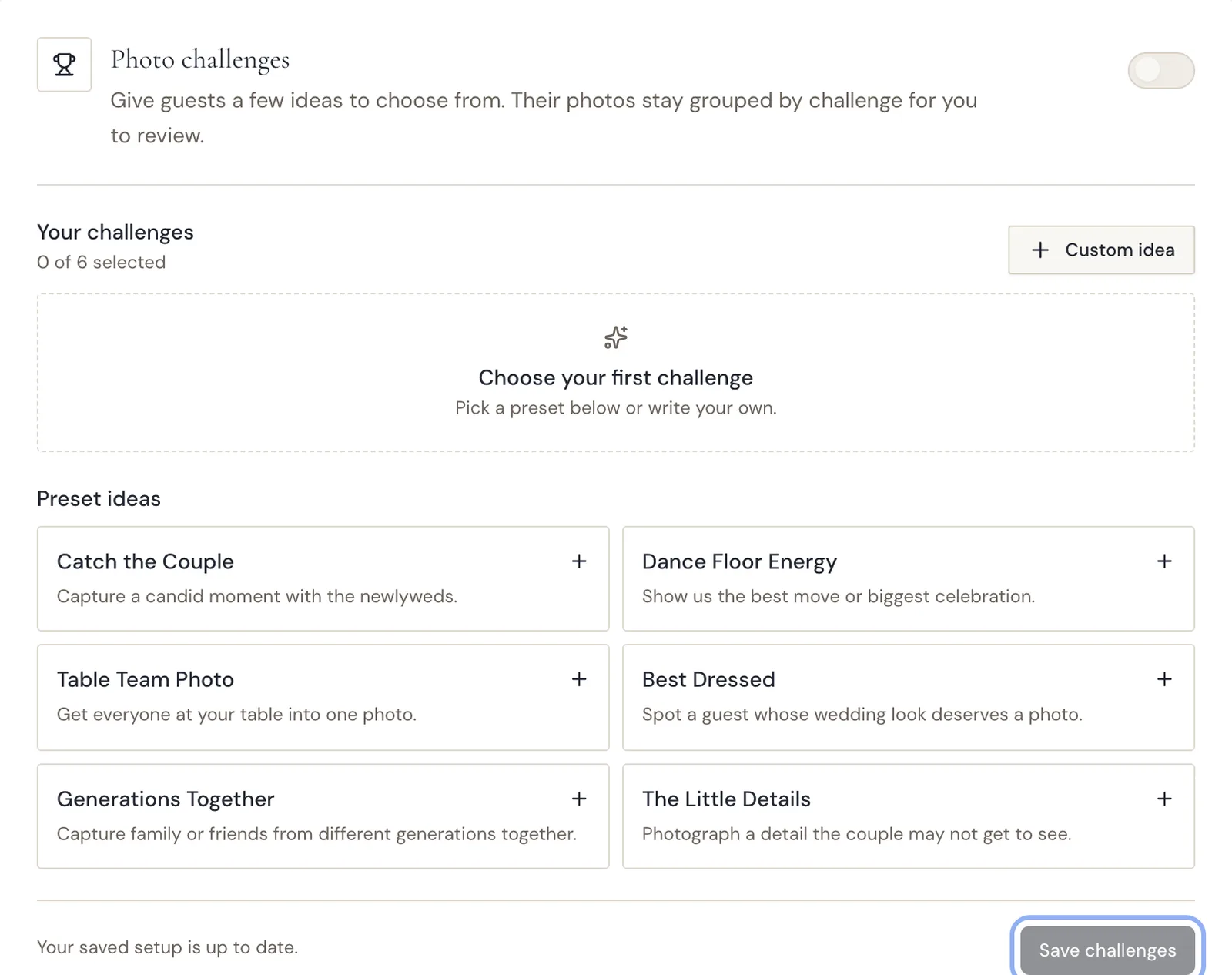
Go to Event in the sidebar. Under Photo challenges, pick preset ideas or write a custom one. Choose Save challenges when you are ready. Their photos stay grouped by challenge for you to review.
Step 2
Share The Guest Camera
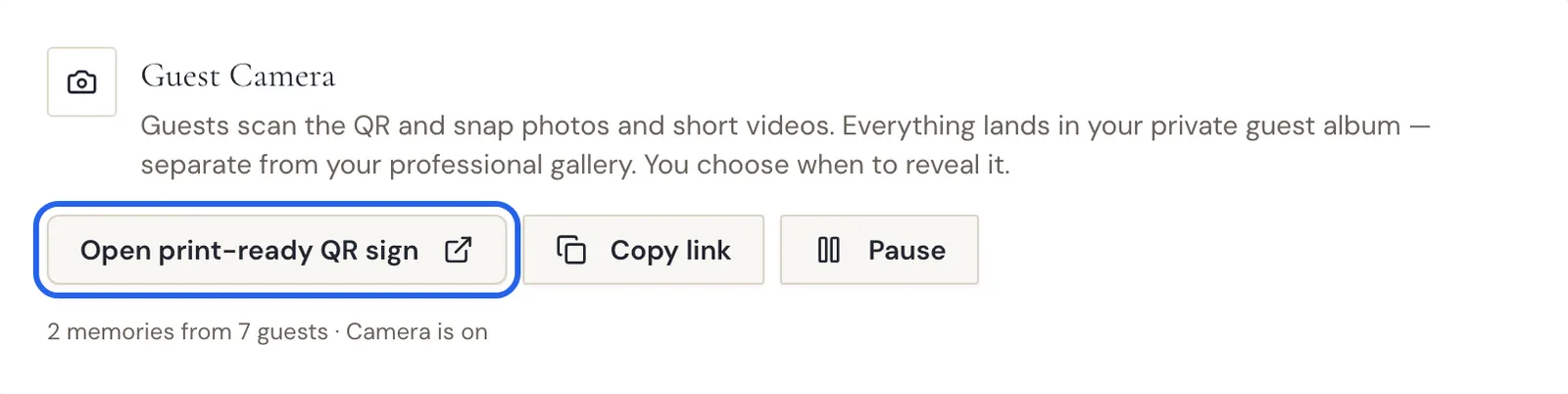
In the Guest Camera section, choose Open print-ready QR sign to print a sign for your tables, or Copy link to share it digitally. The section shows how many memories and guests so far and whether the camera is on.
Step 3
Review The Guest Album
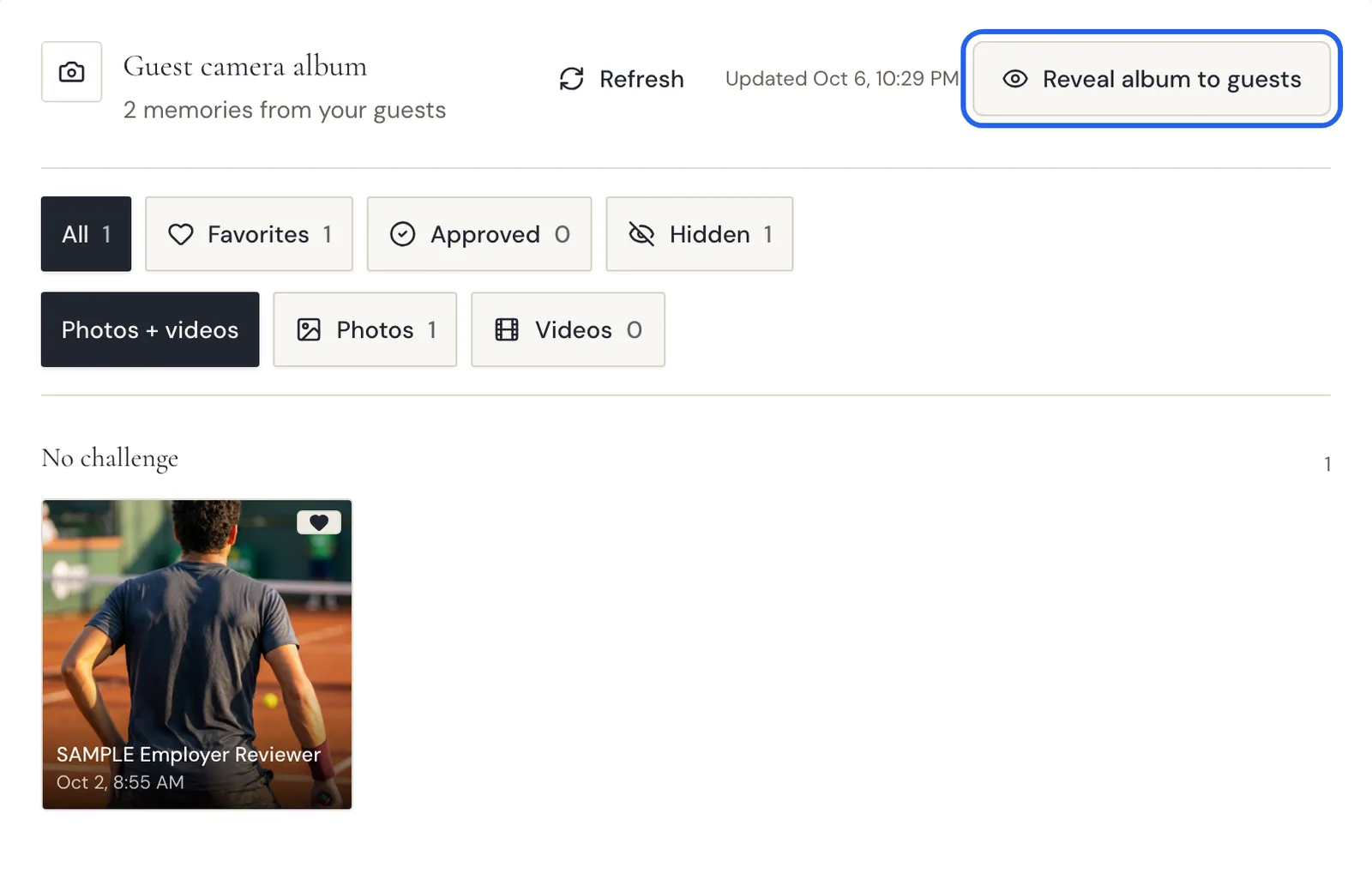
Your Guest camera album shows all submissions. Filter by All, Favorites, Approved, Hidden, Photos or Videos, and by challenge. Choose Reveal album to guests when you are ready to share it.
Good To Know
- Preset challenge ideas include Catch the Couple, Dance Floor Energy, Table Team Photo, Best Dressed, Generations Together and The Little Details.
- Each preset has a short prompt. For example, Catch the Couple says "Capture a candid moment with the newlyweds."
- The page shows how many challenges you have selected, for example "0 of 6 selected".
- The Guest Camera section has a Pause button and shows whether the camera is on.
- After you save, the page says "Your saved setup is up to date."
If Something Looks Different
- Before you choose a challenge, the page says: "Choose your first challenge. Pick a preset below or write your own."
- The Guest Camera section shows whether the camera is on.
- The guest album stays private until you choose Reveal album to guests.
Frequently Asked Questions
Where do guest photos go?
They land in your private guest album, separate from your professional gallery.
Can I pause the guest camera?
Yes. The Guest Camera section has a Pause button.
What can guests upload?
Guests scan the QR and snap photos and short videos.
What are photo challenges?
Photo challenges give guests a few ideas to choose from. Their photos stay grouped by challenge for you to review.
Can I write my own challenge?
Yes. Pick a preset or write your own using Custom idea, then choose Save challenges.
When do guests see the album?
You choose when to reveal it. Choose Reveal album to guests when you are ready to share it.
Still Need Help?
Message us from your client portal or email support@candidstudios.net.
Contact UsRelated Articles
- How To Invite Your Partner To Your Client PortalGive your partner their own access to your event so you can plan together.
- How To Get Proof Of Insurance For Your VenueDownload our certificate of insurance or copy a link to forward to your venue coordinator.
- Client Portal GlossaryPlain definitions of the terms you meet in your Candid Studios client portal, from the questionnaire to the release and the guest camera.
Last updated 2 min read