
How To Use The Candid Studios App
Find your event details, Guest Camera, documents and shot list in the Candid Studios app.
Quick Answer
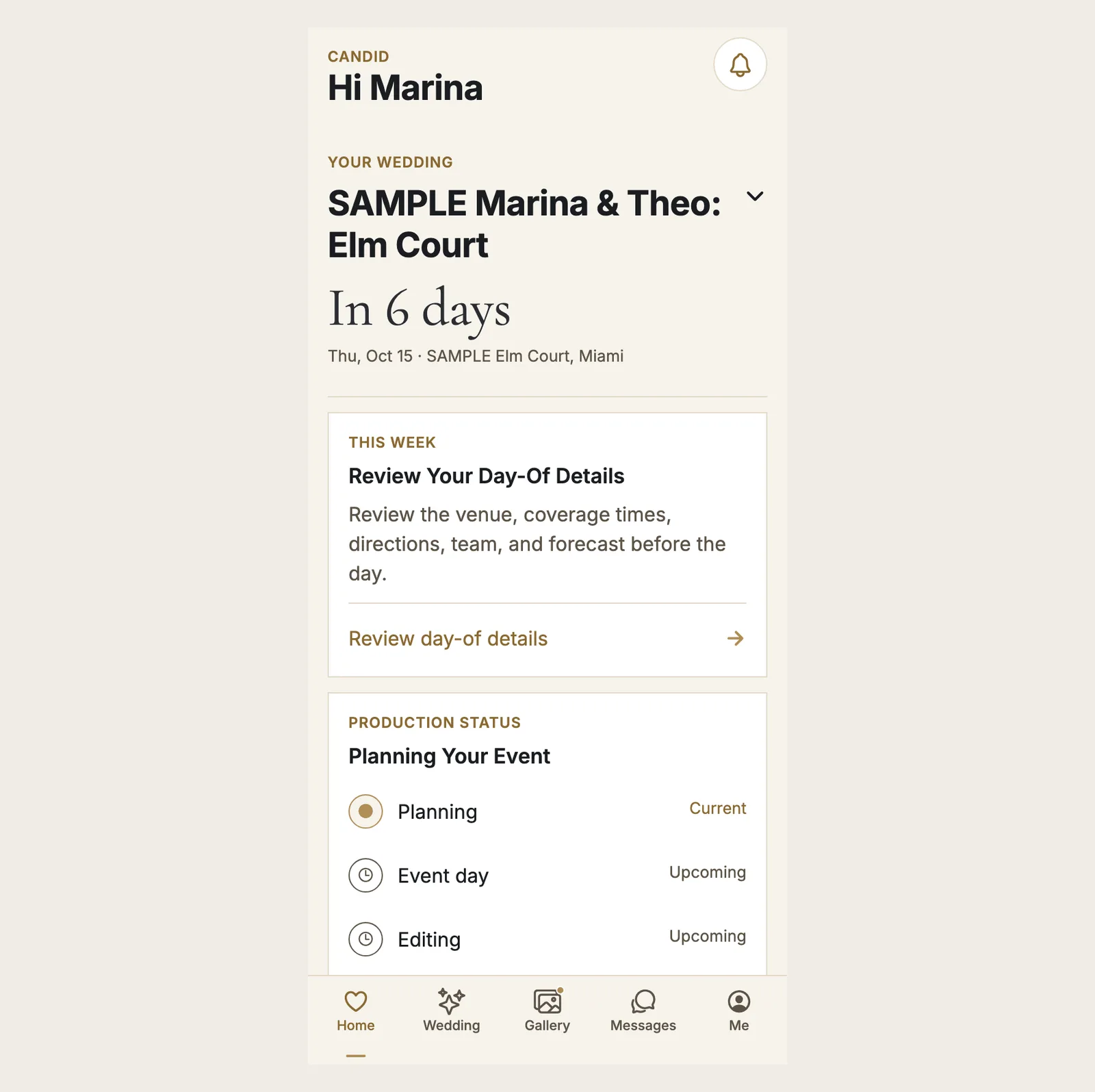
Sign in and use the tab bar at the bottom: Home shows what to review next and your production status, Wedding keeps your schedule, venue, crew, directions and Guest Camera together, and Gallery, Messages and Me hold the rest.
- Home what to review next
- Wedding day-of details
The Candid Studios app puts your event, your team and your planning on your phone. The tab bar at the bottom has Home, Wedding, Gallery, Messages and Me.
Step 1
Start On Home
Home greets you with your event name, date and venue, a This Week card with the next thing to review, and Production Status showing where your event stands: Planning, Event day, Editing and Delivery. Under Your Memories you can open your gallery once media is ready. If you have more than one event, Home lists the others under Other Events.
Step 2
Open The Wedding Tab For Your Day-Of Details
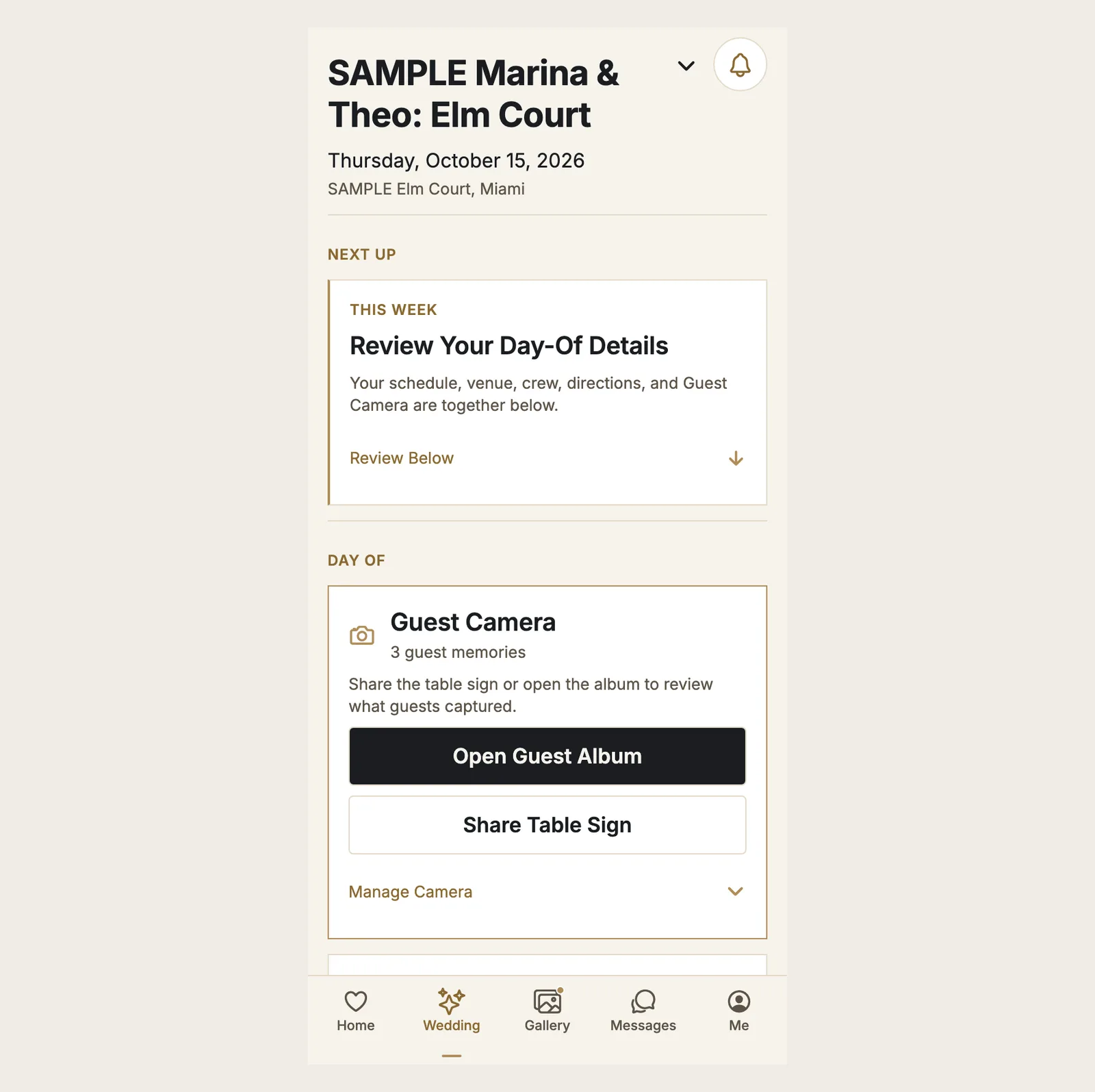
The Wedding tab keeps your schedule, venue, crew, directions and Guest Camera together. Under Guest Camera, choose Open Guest Album to review what guests captured, Share Table Sign to share the sign, or Manage Camera. Each part of your event lists its venue with Apple Maps and Google Maps links, plus Add To Calendar.
Step 3
Check Your Documents
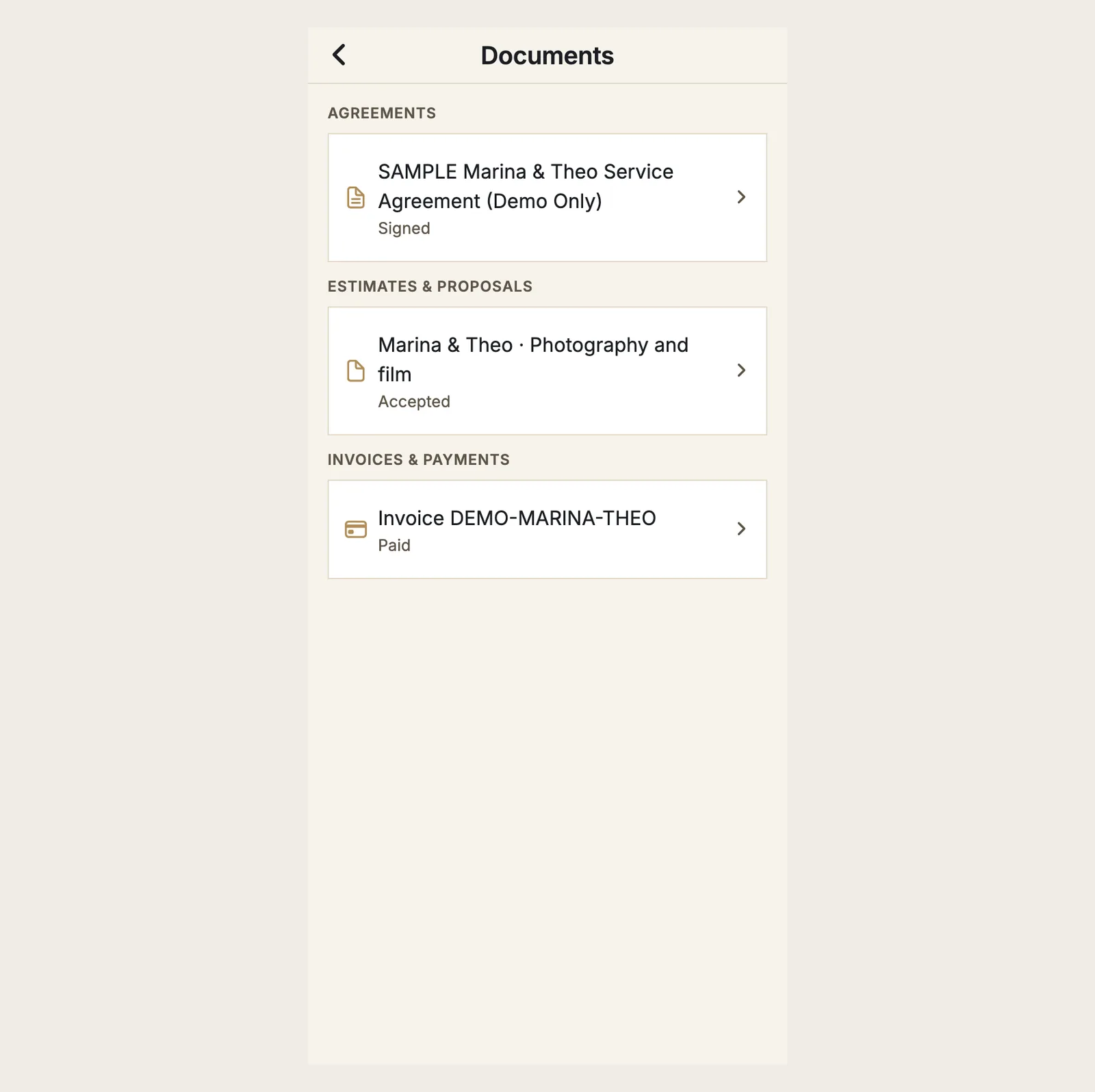
Documents lists your Agreements, Estimates & Proposals, and Invoices & Payments. Each item shows its status, such as Signed, Accepted or Paid.
Step 4
Review Your Shot List
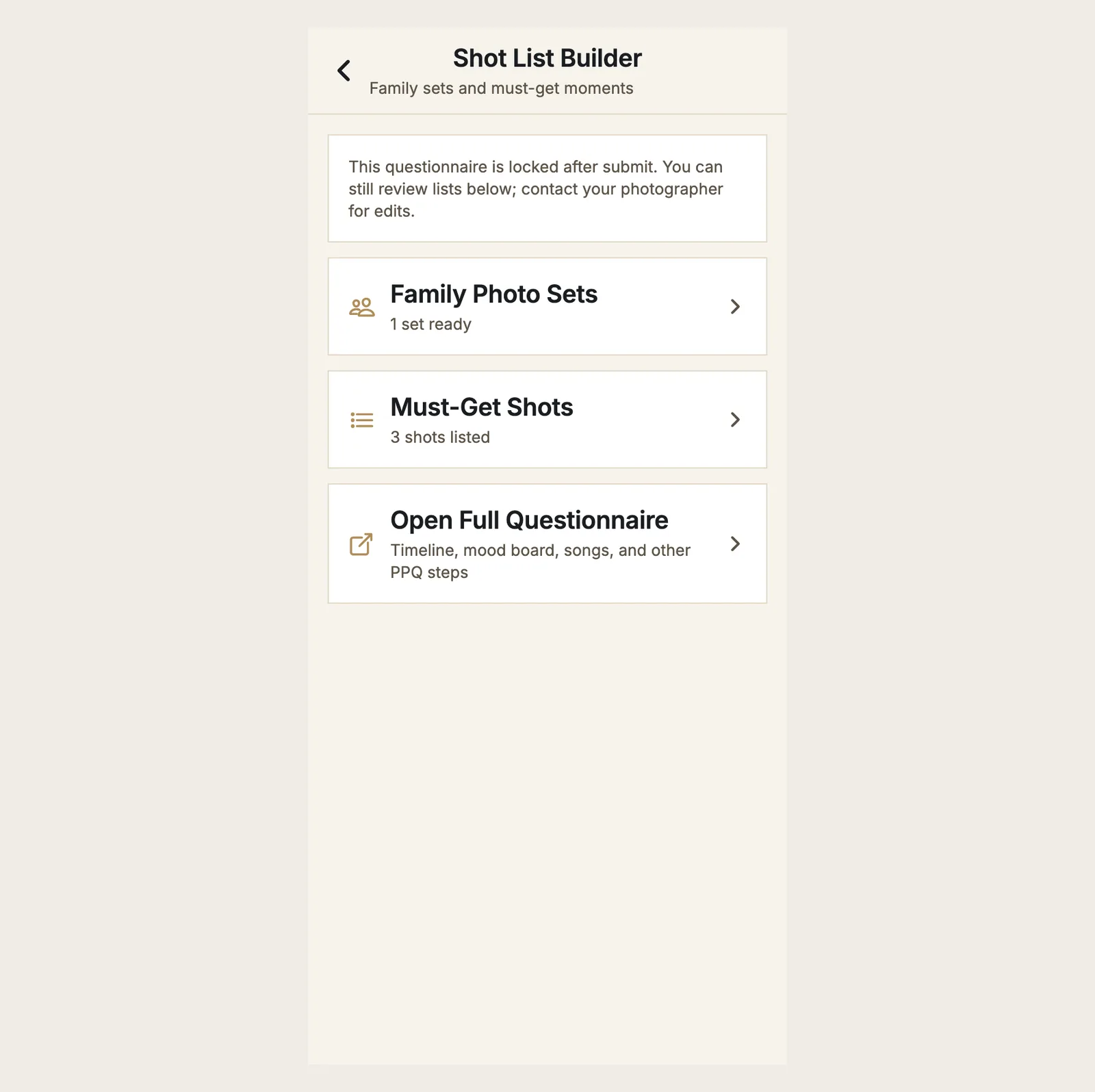
Shot List Builder holds your Family Photo Sets and Must-Get Shots. Choose Open Full Questionnaire for the timeline, mood board, songs and other steps.
Good To Know
- The questionnaire is locked after you submit it. You can still review your lists, and you can contact your photographer for edits.
- If you have more than one event with us, Home lists the others under Other Events.
- To choose which updates reach you, see How To Choose Your App Notifications.
- The same event is in your client portal on the web. See What To Expect After You Book With Candid Studios.
Frequently Asked Questions
Where do I find my day-of details in the app?
Open the Wedding tab. Your schedule, venue, crew, directions and Guest Camera are together there.
Can I see my agreement and invoices in the app?
Yes. Documents lists your Agreements, Estimates & Proposals, and Invoices & Payments, each with its status.
Can I change my shot list after I submit the questionnaire?
The questionnaire is locked after you submit. You can still review your lists, and you can contact your photographer for edits.
Still Need Help?
Message us from your client portal or email support@candidstudios.net.
Contact UsRelated Articles
- How To Use The Guest Camera At Your EventSet up photo challenges and manage the guest camera album from your event page.
- How To Complete Your Pre-Production QuestionnaireFill out the pre-production questionnaire to share your timeline, vendors, songs and must-have shots before your day.
- How To Choose Your App NotificationsPick push, email and text updates for finished memories, studio messages and planning reminders, and set Quiet Hours.
- What To Expect After You Book With Candid StudiosFollow the Your Journey tracker in your client portal from booking to delivery, and see what to do at each stage.
Last updated 2 min read