
How To Watch Your Film And Leave Feedback
Watch your film in the client portal, leave timestamped comments, and approve it or request a revision.
Quick Answer
Open Galleries in your client portal and choose Watch on the Film / video row. Pause the video to leave a timestamped comment, then choose Approve if you are happy, or Request Revision if you want changes.
- Timestamped comments
- Approve or request a revision
When your film is ready, you can watch it from your client portal, leave notes at exact moments, and either approve it or request a revision.
Step 1
Open Your Film From Galleries
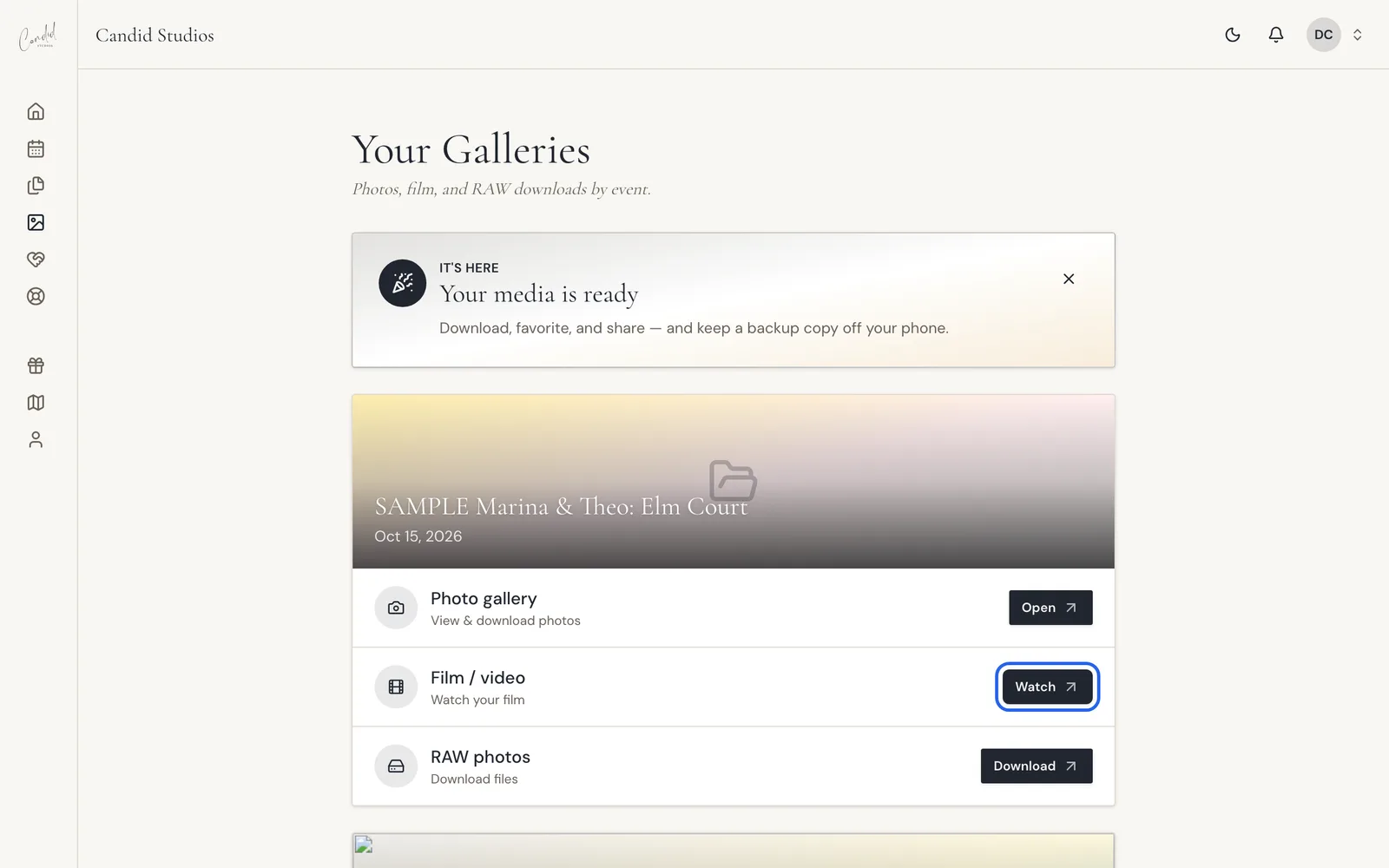
Go to Galleries in the sidebar. Each event has a Film / video row with a Watch button. Choose Watch to open the review page.
Step 2
Pause And Add Comments
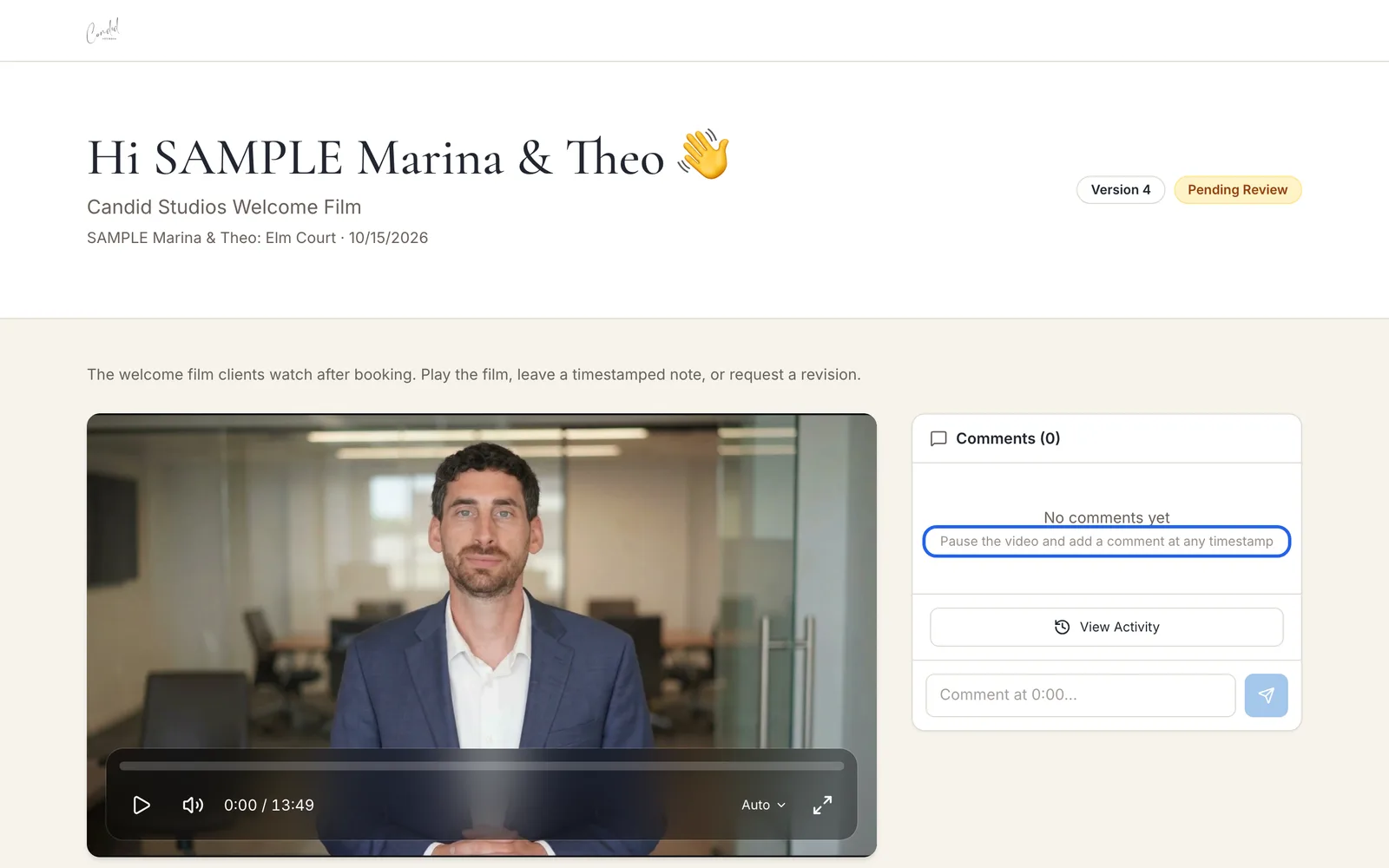
Play the film and pause it when you want to leave feedback. Type your note in the Comments panel. The comment is saved at that exact timestamp so we can find it easily.
Step 3
Approve Or Request Revision
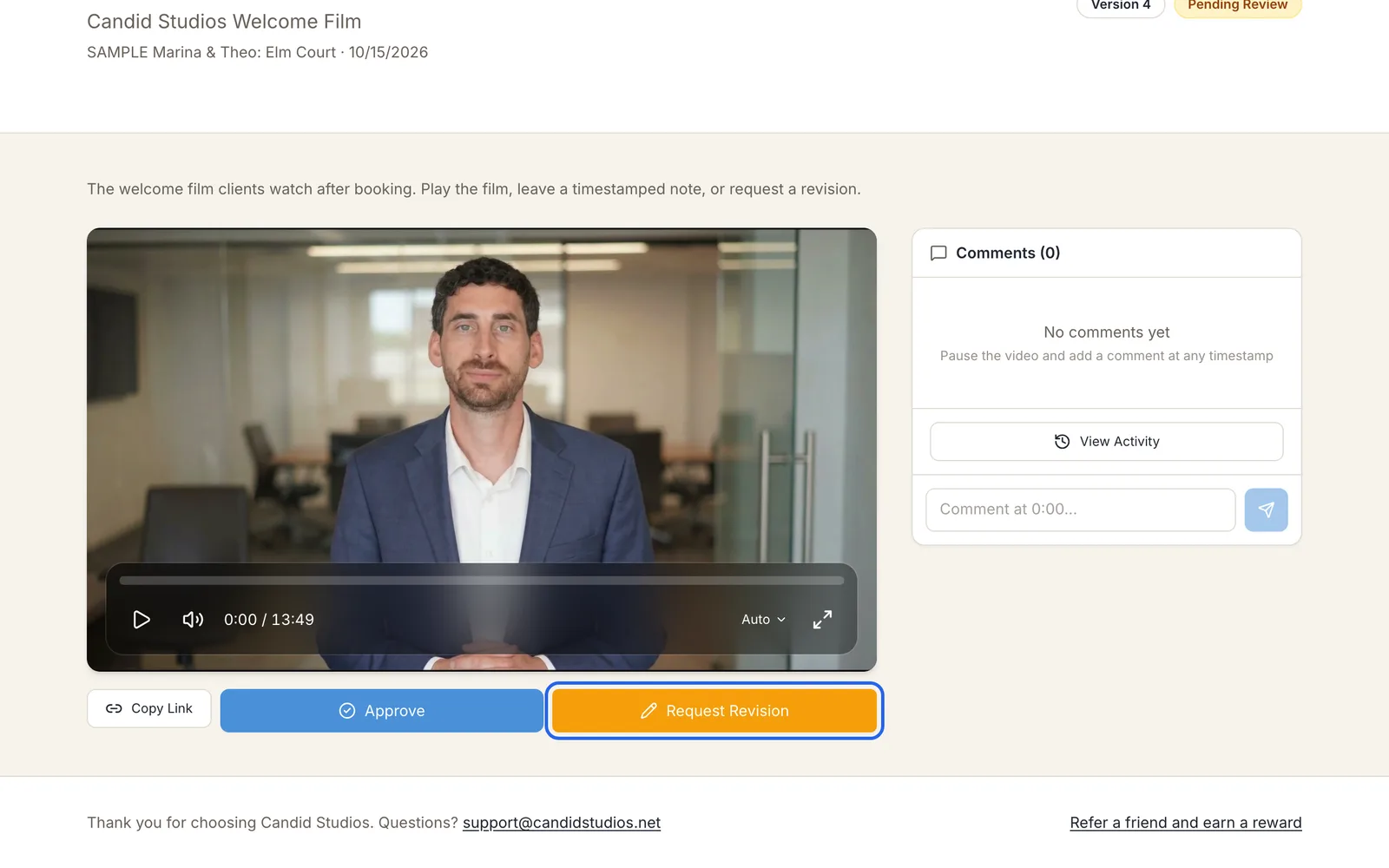
Below the player, choose Approve if you are happy with the film. If you want changes, choose Request Revision after leaving your timestamped comments. Use Copy Link to copy a link to the film.
Good To Know
- The review page shows the version number and the review status, such as Pending Review.
- The page invites you to play the film, leave a timestamped note, or request a revision.
- Until you leave one, the Comments panel reads "No comments yet. Pause the video and add a comment at any timestamp."
- To watch the film, the portal says to sign the media release. See How Photo And Film Delivery Works.
If Something Looks Different
- "Film appears when we publish the wedding film." Your film is not published yet.
- "Sign the media release to watch the film." Sign the Photography & Videography Release to access the film.
- "Delivery is in progress. Check back soon, or open Galleries from the sidebar when your links go live."
- "Your photos and film are being edited. We'll notify you the moment your gallery is ready to review."
Frequently Asked Questions
Where do I find my film?
Open Galleries in your client portal and choose Watch on the Film / video row for your event.
How do I request changes?
Choose Request Revision after adding your timestamped comments.
Why can I not watch my film yet?
The portal says the film appears when we publish the wedding film. It may also ask you to sign the media release to watch the film.
Where do my comments go?
Each comment is saved at the exact timestamp where you paused. Choose View Activity to see the history of your comments and status updates.
Can I share a link to the film?
The review page has a Copy Link button below the player.
Still Need Help?
Message us from your client portal or email support@candidstudios.net.
Contact UsRelated Articles
- How To View And Download Your PhotosOpen your gallery from the client portal, then download every photo at once or save your favorites one by one.
- How To Invite Your Partner To Your Client PortalGive your partner their own access to your event so you can plan together.
- How Photo And Film Delivery WorksHow long editing takes, where your photos, film and RAW files appear, and why you sign a release before downloading full-resolution photos.
Last updated 2 min read